Test the connection after installation
Downloading, launching, and connecting are three separate steps. Check the current step before changing later settings to preserve useful clues when troubleshooting.
Import an existing configuration
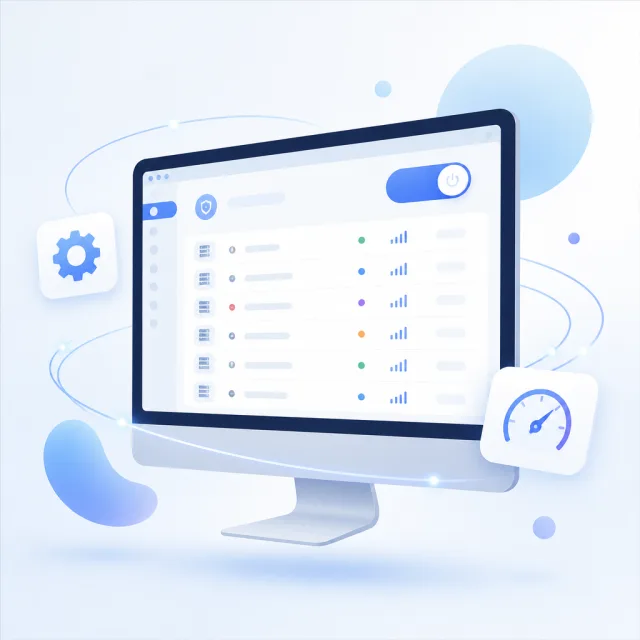
The client doesn’t include a usable server. On desktop, add a subscription address to a subscription group and update it. On Android, import through the subscription settings or a share-link option. A subscription URL and an individual share link are different types of data; using the wrong import option may leave the server list empty.
After updating a subscription, confirm that servers appear in the list, then select one. If the update fails, check the request message and response before changing routing or DNS. Subscription URLs may contain access credentials, so hide the full address in screenshots and support requests.
Choose which traffic to proxy
On desktop, check the system proxy mode first, then make sure the apps you want to use can read system proxy settings. Tun changes which traffic is routed and requires additional permissions and routing configuration; it doesn’t need to be enabled right after installation. Start with a simple connection test and change as few settings as possible.
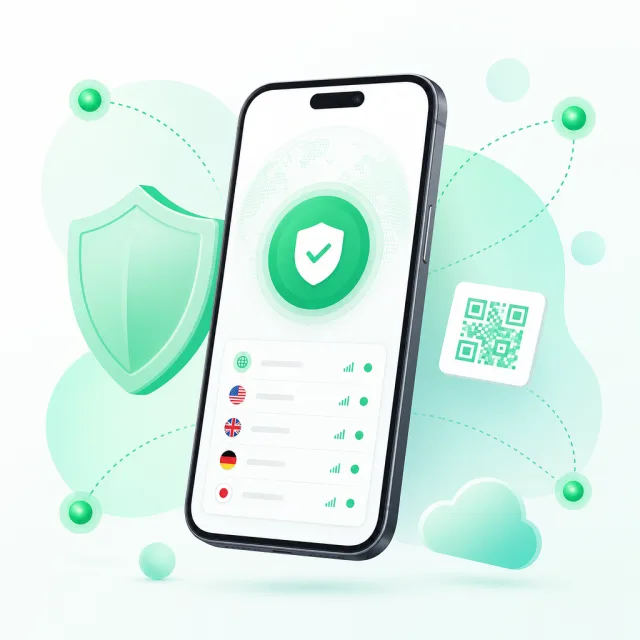
On Android, approve the VPN request and check that the target app is included in the per-app proxy list. If the connection drops only when the screen is locked, check battery optimization and background activity restrictions. Keep only one VPN service active to avoid confusion over which app is routing traffic.
Verify that apps can connect
Run a real connection speed test with the selected server, then test access in the app you want to use. TCPing only checks whether a port is reachable; it doesn’t test the full proxy connection. If a test fails, note the error in the logs and distinguish between a local listener failure, a remote timeout, and a DNS resolution issue.
If a browser works but other apps don’t, check those apps’ proxy settings first. If no apps work, check the selected server and your network. Change one setting at a time and record the results; this makes it easier to find the cause than changing several configurations at once.